

Launch a new site for AI search
Audit, schema, llms.txt, sitemap, tracking tag and first prompts.
Listen to this lesson · 2:40
In shortWhen you launch a new site, set up AI search measurement from day one: install the tracking tag, audit the key pages for AI readiness, crawl for technical errors, check Core Web Vitals, add FAQ schema, publish llms.txt and an XML sitemap, connect Search Console and GA4, then run your first prompts as a baseline. Each step maps to one AI Rank Lab module, and most cost a small, known amount shown before you run it.
Why launch week matters
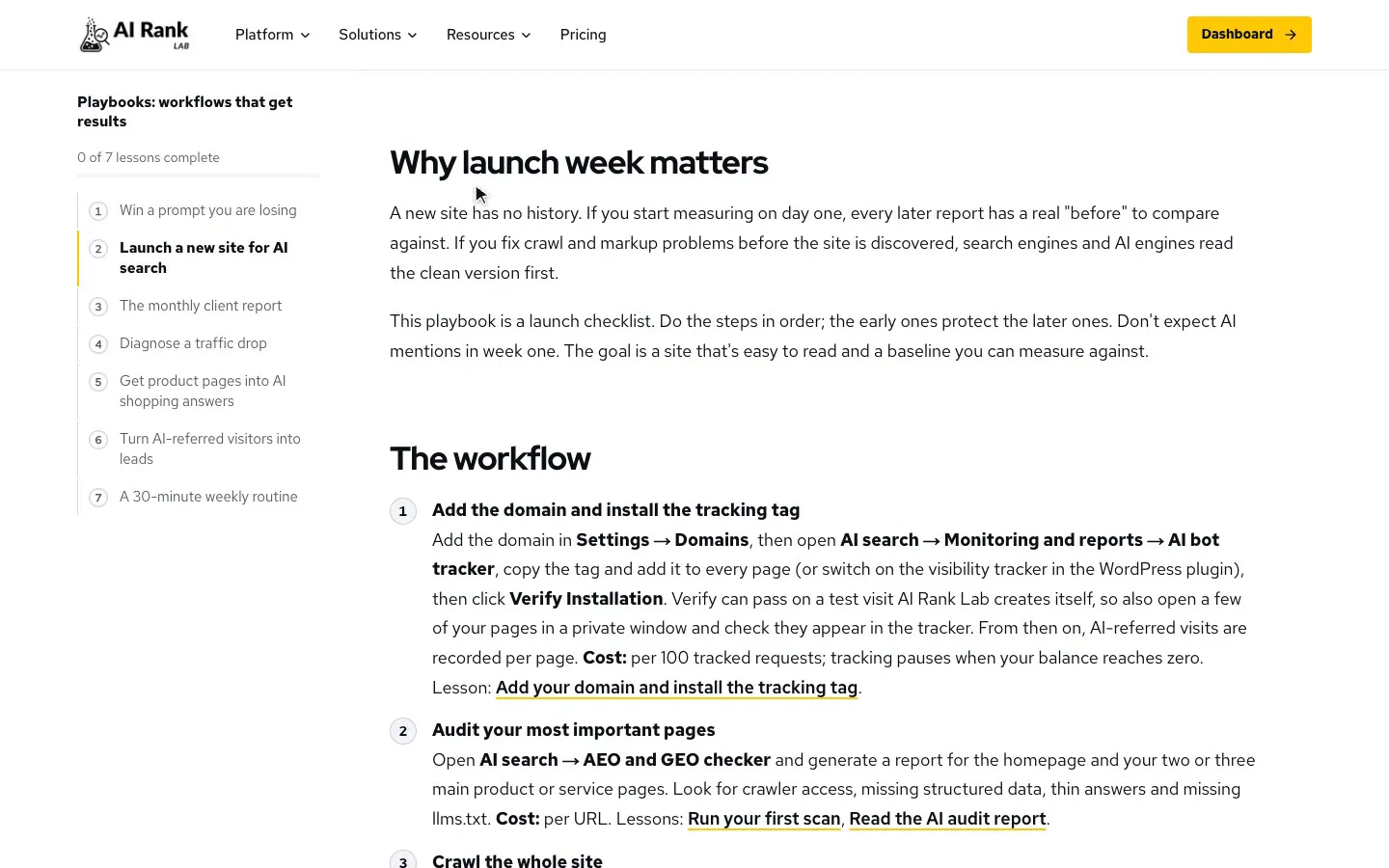
A new site has no history. If you start measuring on day one, every later report has a real "before" to compare against. If you fix crawl and markup problems before the site is discovered, search engines and AI engines read the clean version first.
This playbook is a launch checklist. Do the steps in order; the early ones protect the later ones. Don't expect AI mentions in week one. The goal is a site that's easy to read and a baseline you can measure against.
The workflow
- Add the domain and install the tracking tagAdd the domain in Settings → Domains, then open AI search → Monitoring and reports → AI bot tracker, copy the tag and add it to every page (or switch on the visibility tracker in the WordPress plugin), then click Verify Installation. Verify can pass on a test visit AI Rank Lab creates itself, so also open a few of your pages in a private window and check they appear in the tracker. From then on, AI-referred visits are recorded per page. Cost: per 100 tracked requests; tracking pauses when your balance reaches zero. Lesson: Add your domain and install the tracking tag.
- Audit your most important pagesOpen AI search → AEO and GEO checker and generate a report for the homepage and your two or three main product or service pages. Look for crawler access, missing structured data, thin answers and missing llms.txt. Cost: per URL. Lessons: Run your first scan, Read the AI audit report.
- Crawl the whole siteOpen SEO → Audits → Site audit and run a crawl. It stops at 500 pages by default; the limit shows under Settings but can't be changed on the page yet. Fix broken links, missing titles and descriptions, accidental noindex tags and wrong canonicals before anything else. Cost: per page crawled. Lesson: Crawl your site with Site audit.
- Check speed on real templatesOpen SEO → Audits → Core Web Vitals and click Scan Now. It tests the pages AI Rank Lab has already discovered for your domain, not URLs you type, and nothing in the dashboard builds that list today, so a brand-new domain usually gets "No URLs found to scan" (nothing is charged). If that happens, test one page per template (home, product, article) in Google's free PageSpeed Insights instead. Slow templates are cheaper to fix before you have hundreds of pages. Cost: per URL, mobile and desktop together. Lesson: Monitor Core Web Vitals.
- Add FAQ schema where you have real FAQsOpen Content → Schema and AI files → FAQ schema generator, generate JSON-LD for pages that show questions and answers on the page, add it to those pages, then validate. Only mark up questions visitors can actually see. Cost: per generation; validating is free. Lesson: Generate FAQ schema.
- Publish llms.txtOpen Content → Schema and AI files → LLMs.txt generator, generate the file, review it and upload it to your site's root as
/llms.txt. It's a tidy map of your key pages for AI tools; it doesn't guarantee citations. Cost: per file. Lesson: Generate llms.txt. - Generate and submit an XML sitemapIf your CMS doesn't already make one, open Content → Schema and AI files → Sitemap generator, crawl the site and upload the file. Each sitemap holds up to 50 URLs today, so it suits small sites. Then submit it in Google Search Console. Cost: per 5 URLs found, taken as the crawl runs; if your balance runs out the crawl stops early. Lesson: Generate an XML sitemap.
- Connect Search Console and GA4Under Analytics, connect Search Console (Search Console → GSC overview) and GA4 (Google Analytics 4 → GA4 overview). New sites have little data, but connecting now means the history starts now. Cost: connecting and reading the overviews is free. Lessons: Connect Search Console, Connect GA4.
- Run your first prompts as a baselineOpen AI search → Brand visibility → Prompt research, add five to ten buyer questions and run them once. You probably won't be mentioned yet. That's fine: this run is your "before" for future progress reports. Cost: research per use, runs per engine per prompt. Lessons: Add and research prompts, Run prompts across AI engines.
What each step protects
| Step | If you skip it |
|---|---|
| Tracking tag | You can't show which pages AI assistants sent visitors to in the first months |
| AEO report and Site audit | Engines discover pages with errors, blocked access or no clear answer |
| Core Web Vitals | Slow templates get copied into every new page |
| FAQ schema, llms.txt, sitemap | Your content is harder for search and AI tools to parse and find |
| Search Console and GA4 | No history to compare against later |
| Baseline prompts | Your first progress report has no "before" |
The tracking tag stops recording when your credit balance reaches zero and starts again after you top up. A gap in launch month is a gap in your baseline. Check your balance in Settings → Coins & Credits.
The AEO and GEO checker, Site audit and Core Web Vitals measure different things with different scoring. Use each for its own fix list, and compare a tool only with its own earlier results.
Check yourself
0 of 3 answered.
Progress is saved in this browser.
Transcript
Put the lesson to work
Paste your site and get a free SEO, AEO and GEO audit with the fixes, then come back to the next lesson.